Xero
Xero is popular with small business owners and their accountants especially in Australia, New Zealand and the UK. It's designed for people who want clean, no-fuss bookkeeping without needing an accounting degree. Core use cases are invoicing, bank reconciliation and day-to-day financial admin.
Features
- Authenticate via OAuth
- Retrieve invoice data via API
- Your customer is redirected to the payment page after clicking the link on the invoice
- Your customer is redirected to the payment page after clicking the link in the mail send with the invoice.
Connecting your account to Pay In BTC
In step 2 of the activation procedure you need to connect Xero to Pay In BTC. This is done in the following setps:
- Click the Connect button
- You'll be redirected to the Xero login page — log in if you aren't already
- Approve the access request when prompted
- You'll be sent back to payinbtc.me automatically — your account is now connected
Add bitcoin payment link to invoice
Xero is a flexibel product. It's possible to add the payinbtc.me payment link in several ways to the invoice:
- in the payment terms
- as an online payment method
- in a custom invoice template
The first option only contains the link to our solution, so your customer needs to enter the invoice number before data is retrieved. The other 2 options utilize our full service by entering a variable for the invoice number. Please be aware you have only one online payment method active at a time, so you need to deactivate online card payments in favour of online bitcoin payments.
It's up to you which option you choose.
Add payment link to payment terms
- Logon into Xero with your credentials
- If you have multiple companies, make sure you select the right one before you take the next steps
- Click Sales in the top menu and then click Sales settings in the submenu
- Look for the Sales block like below and click Invoice settings

- Click on Options on the right, followed by Edit
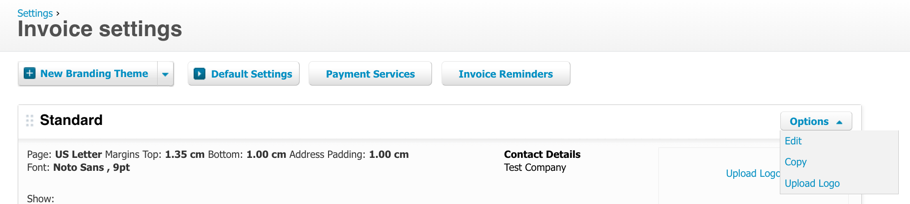
- In the lower right corner of the popup, you see the field Terms & Payment Advice (Invoice and Statement).
- Add here our payment link. Please see account activation email for the details about this link.
- Press Save and this part is done.
Add payinbtc.me as online payment method
- Logon into Xero with your credentials
- If you have multiple companies, make sure you select the right one before you take the next steps
- Click Sales in the top menu and then click Sales settings in the submenu
- Look for the Sales block like below and click Invoice settings
- Click the button Payment Services
- Click Add a new service
- Click add another online payment option below the main options (like credit card and Paypal) shown
- Click on Custom payment url and press Continue
- Enter account name: payinbtc.me
- Your custom url:
/[INVOICENUMBER]/ Please see account activation email for the details about this link. So make sure you add [INVOICENUMBER] as a variable at the end of the url. - Enter Pay now button text: Pay in Bitcoin
- Press Save
- Click Connected services and press button Manage themes
- In the popup select the payinbtc.me option in the column Credit card
- Press Save and this part is done.
Add payment link to a new custom invoice template
Xero has a great documentation about how to create custom invoice templates, click here.
- Somewhere in the template you need to add the payment link.
- Please see account activation email for the details about this link.
- Make sure you add [INVOICENUMBER] as a variable at the end of the url, without a space. So the url should look like this:
/[INVOICENUMBER]/
Add bitcoin payment link to invoice email
- Logon into Xero with your credentials
- If you have multiple companies, make sure you select the right one before you take the next steps
- Click Sales in the top menu and then click Sales settings in the submenu
- Look for the General block like below and click Email settings
- Click on the text Templates to show all available templates
- Click on Sales invoice to open the template editor for this template
- Add our payment link on a place you like. Please see account activation email for the details about this link.
- Press Save
Done! You are now ready to accept bitcoin via your invoices. Test it out with a test invoice.