Simplbooks
[SimplBooks}(https://www.simplbooks.ee) (for Finland https://www.simplbooks.fi/) is mainly used by freelancers, small business owners, and accountants in Estonia and Finland to handle invoicing, expense reports, payroll, and VAT returns. It's particularly popular among Estonian e-residents and OÜ owners looking for straightforward, affordable accounting software with direct e-MTA integration for submitting tax declarations.
Features
- Authenticate via an API Token
- Retrieve invoice data via API
- Your customer needs to enter the invoice number manually after clicking the link on the invoice
- Your customer is redirected to the payment page after clicking the link in the mail send with the invoice.
Setup
Connecting your account to Pay In BTC
We need to perform two steps to connect your Simplbooks account to payinbtc.me. Both steps are described below.
Retrieve API Key
- Select Settings -> Users in the top menu.

- Click New user on the top right corner
- Click API User on the left side
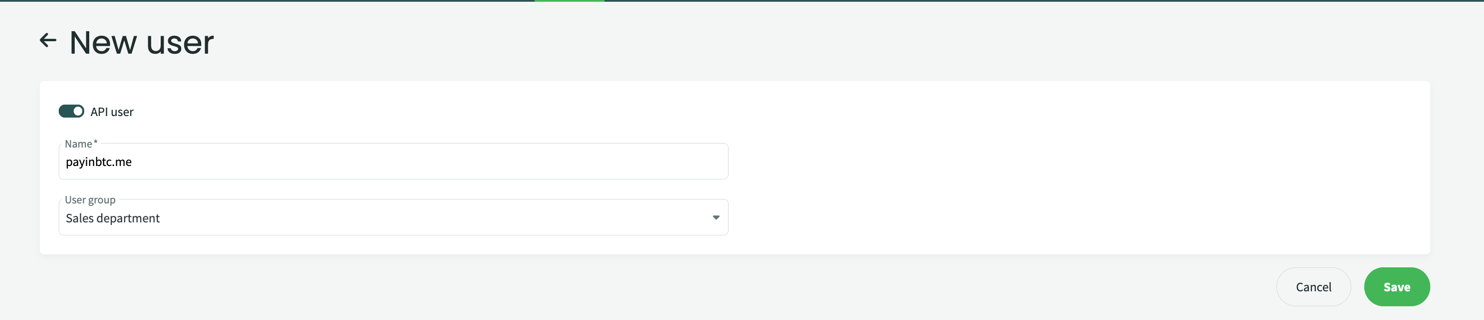
- Enter a name, for example payinbtc.me
- Select User Group Sales Department since we only need data about the invoices.
- Press Save
- You are now being redirected to user overview

- Click the 3 dots on the right side of the user and select View API Token
- You can now copy the token. Paste in on a temporary location where you can easily access it during the setup process.
Retrieve Company ID
- Select correct company in the top right corner
- The url in your address bar should be something like this: https://app.simplbooks.com/c361d28...b4985/dashboard
- The part after https://app.simplbooks.com/ and before /dashboard
- Copy the company_id, paste in on a temporary location where you can easily access it during the setup process.
Setup invoice
- Select Settings -> Environment settings
- In the menu on the left side select Invoice settings
- Look for the field Additional info on invoice.
- Add the payment link to this field. Please see account activation email for the details about this link.
Setup email
- Select Settings -> Environment settings
- In the menu on the left side select Mail templates
- Look for the document with the type Sales Invoice
- Add the payment link to this field. Please see account activation email for the details about this link.
- Click Pencil icon on the right, Template is now opened.
- Edit the field Message, add the payment link to this field. Please see account activation email for the details about this link.
Done! You are now ready to accept bitcoin via your invoices. Test it out with a test invoice.
Remarks
- API access is only available on the Premium plan, so automated Bitcoin payment integration requires an upgrade from the lower-tier plans
- SimplBooks is only active in Estonia and Finland, making it unsuitable for businesses based in other countries