Quickbooks
QuickBooks is a widely used accounting software developed by Intuit, designed for small to medium-sized businesses. It helps businesses manage their finances by handling invoicing, expense tracking, payroll, tax preparation, bank reconciliation, and financial reporting
Features
- Authenticate via OAuth
- Retrieve invoice data via API
- Your customer needs to enter the invoice number manually after clicking the link on the invoice
- Your customer is redirected to the payment page after clicking the link in the mail send with the invoice.
Setup
Connecting your account to Pay In BTC
In step 2 of the activation procedure you need to connect Quickbooks to Pay In BTC. This is done in the following setps:
- Click the Connect button
- You'll be redirected to the Quickbooks login page — log in if you aren't already
- Approve the access request when prompted
- You'll be sent back to payinbtc.me automatically — your account is now connected
Add bitcoin payment link to the invoice
The final step is to add the bitcoin payment link to the invoice. You have now two options to add the payment link to the invoice. Select your preferred and perform the steps.
Option 1: Add to the payment instructions
- Logon into Quickbooks with your credentials.
- Go to the Settings menu and select Account and settings
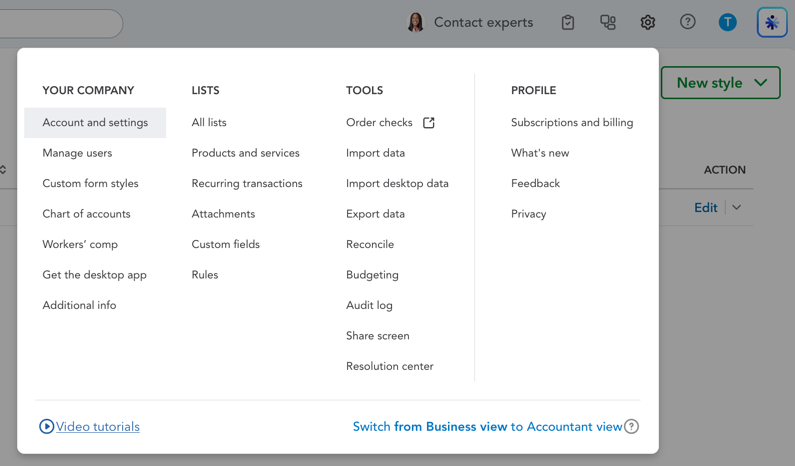
- In the left menu option Sales
- Look for the block Invoice payments
- Click the pencil on the right
- You see now the field Payment instructions. Add the payment link to the text (max 255 characters). Please see account activation email for the details about this link.
- Press Save
Option 2: Add to the invoice footer
- Logon into Quickbooks with your credentials.
- Go to the Settings menu and select Custom form styles
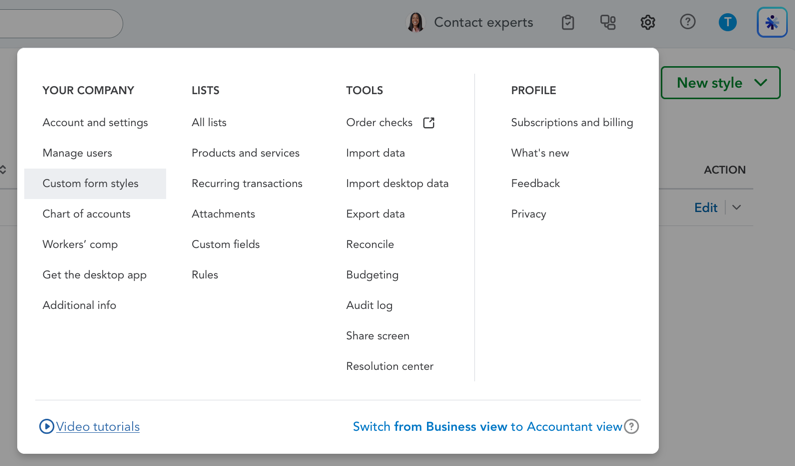
- Click Edit on the right side of the table of you active style (Standard by default). The following menu is snown afterwards.
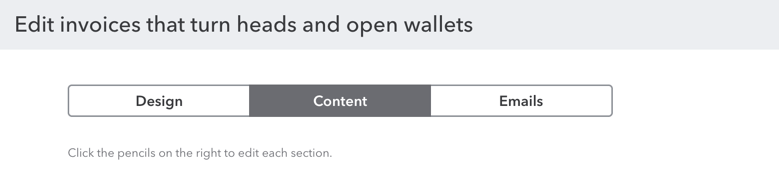
- Select Content
- Click on the pencil in the block at the bottom (with the totals)
- Add the payment link in the field Add footer text. Please see account activation email for the details about this link.
- Press Done
Add bitcoin payment link to the invoice email
You can also add the payment link to the invoice email.
- Logon into Quickbooks with your credentials.
- Go to the Settings menu and select Custom form styles
- Click Edit on the right side of the table of you active style (Standard by default). The following menu is snown afterwards.
- Select Emails
- Make sure you have selected Invoice in the dropdown Sales form type
- You see now two emails to change. The Standard email and the Reminder email.
- Add the payment link in this field. Please see account activation email for the details about this link.
- Press Done
Done! You are now ready to accept bitcoin via your invoices. Test it out with a test invoice.
Remarks
- Quickbooks doesn't support template variabele in invoices. Therfor if your customer clicks on the link they will be redirecterd to a form where they have to enter the invoice number. Clicking on the link in the email will redirect them directly to the payment.