Invoice Ninja
Invoice Ninja is an open-source invoicing platform that helps freelancers and small businesses create professional invoices, track time, and manage payments. It offers both cloud-hosted and self-hosted options, with features like recurring billing, expense tracking, and integration with popular payment gateways.
Features
- Authenticate via API Token
- Retrieve invoice data via API
- Your customer is redirected to the payment page after clicking the link on the invoice
- Your customer is redirected to the payment page after clicking the link in the mail send with the invoice.
Note
- You need to self-host Invoice Ninja or have a 'Pro' plan to use the API and templates. Both are needed for our solution to work.
- Invoice Ninja doesn't send the currency with their invoice. Therfor it's not possible for us to determine the currency of the invoice. We fall back on the configured default for your company. Be aware that you can't use multiple invoice currencies together with our service. If you do, please contact us.
Setup
In step 2 of the activation procedure you need to enter details from Invoice Ninja. We need an API key with access to the invoices and the company id. You have to retrieve both by yourself. The steps below guide you through the steps.
Create and Retrieve API Key
- Logon into Invoice Ninja with your credentials
- Select Settings -> Accountmanagement in the menu
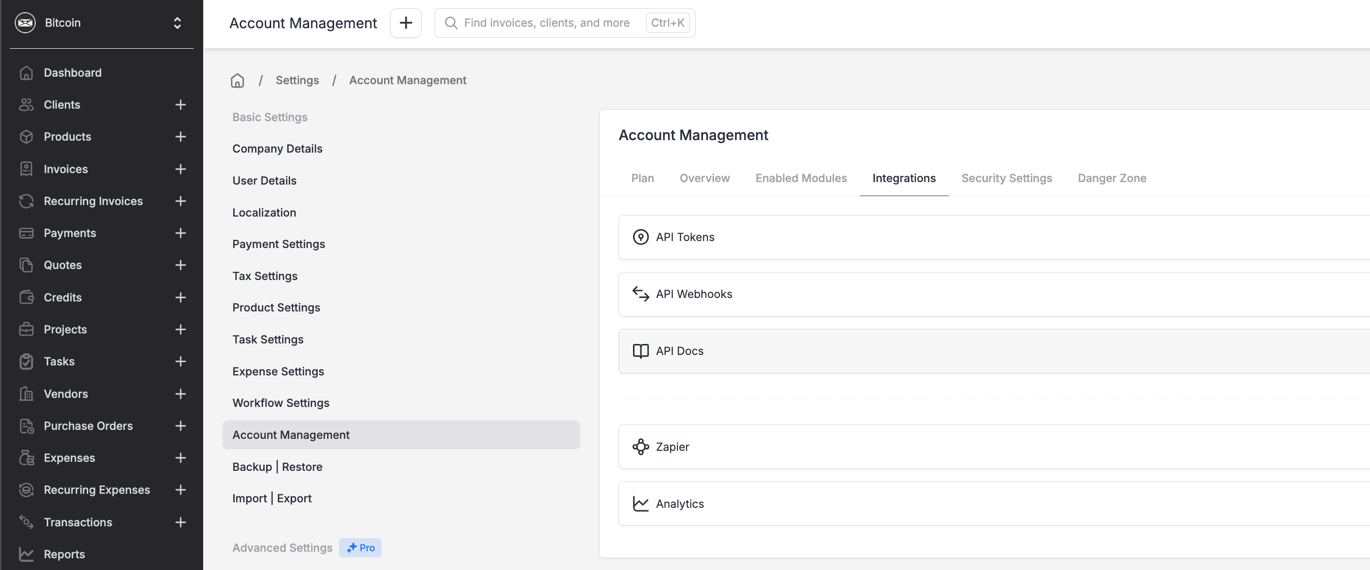
- Open the tab Integrations and select API Tokens
- Press the button New Token
- Fill in the name for the token. For example payinbtc.me and press save. API key is now created and saved.
- Go again to Account management -> Integrations -> API Tokens
- Click on the name of the just created API key. The screen below is shown
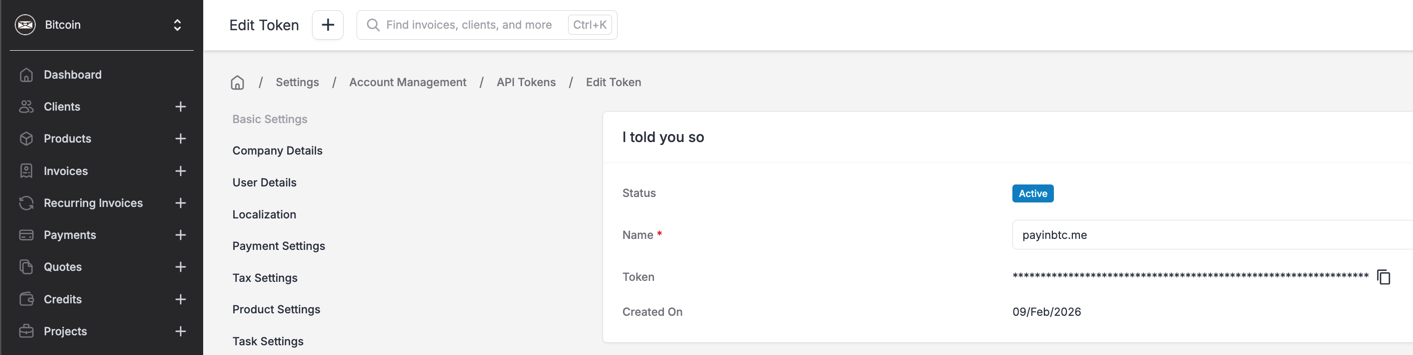
- Click on the copy symbol to copy the key to your clipboard. Keep the screen open during the payinbtc.me setup.
Add bitcoin payment link to invoice
The next step is to add the bitcoin payment link to the invoice. To set this up, perform the following steps.
- Logon into Invoice Ninja with your credentials
- Create a new invoice or select an existing one
- Go to the for with public notes. Select the tab Terms
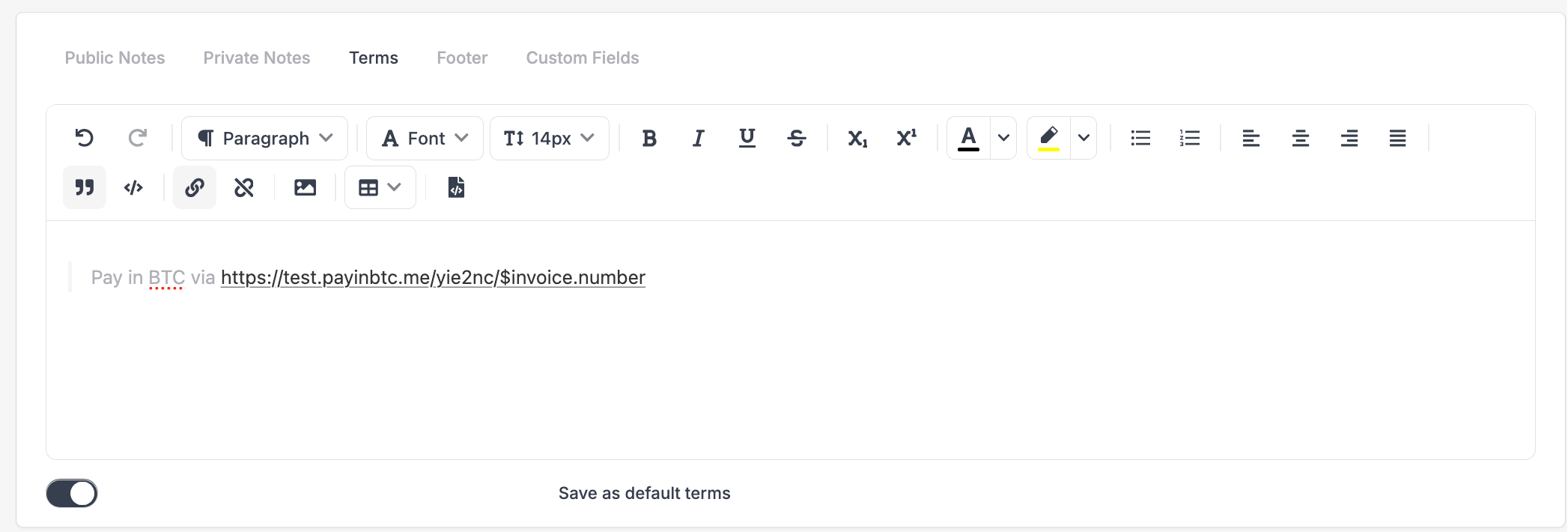
- You can now add the payment link. Please see account activation email for the details about this link.
- Check the box at Save as default terms
- Save the invoice.
Add bitcoin payment link to emails
The last step is to add the bitcoin payment link to the invoice. To set this up, perform the following steps.
- Logon into Invoice Ninja with your credentials
- Select Settings -> Templates & Reminders in the menu
- If needed you can update the different templates that are present
- First one selected: Invoice
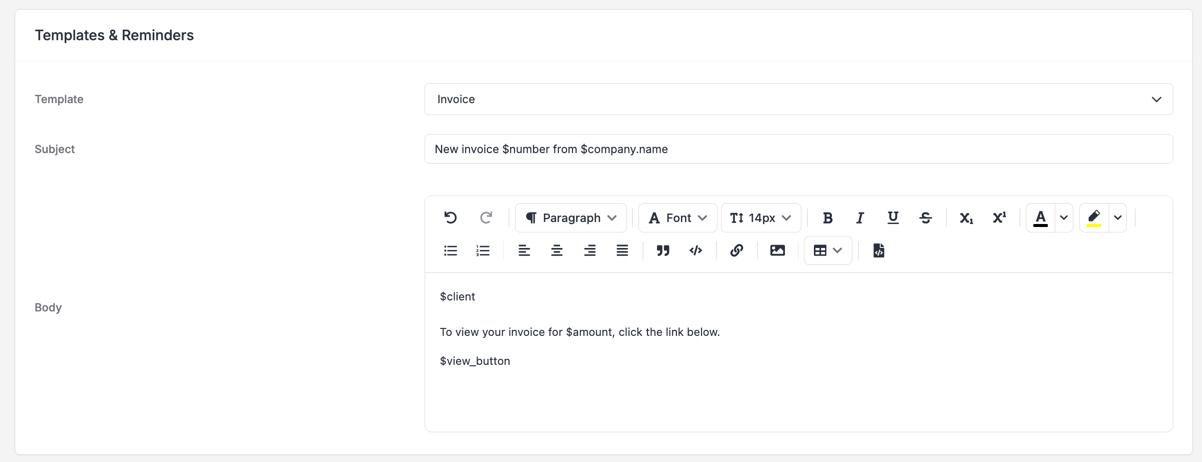
- You can now add the payment link. Please see account activation email for the details about this link.
- Save the changes.
- Repeat the steps above for all itmes you would likes to update.